![Logo_Grenton_Main_2020_RGB_v1.0-1.png]](https://knowledgebase.grenton.com/hs-fs/hubfs/Logo_Grenton_Main_2020_RGB_v1.0-1.png?width=200&height=94&name=Logo_Grenton_Main_2020_RGB_v1.0-1.png)
To enable simultaneous call forwarding from the intercom unit to the indoor monitor and the myGrenton app, configure the devices according to the steps below.
- Make sure that the intercom and mobile devices have SIP accounts configured. If they do not, please start with this article.
- Verify the monitor’s IP address and write it down. You can find it in the monitor settings
(Settings→Network). - Log in to the browser interface of the outdoor unit (intercom) and go to the
Forwardtab. - To add call forwarding to the monitor, select
New forward.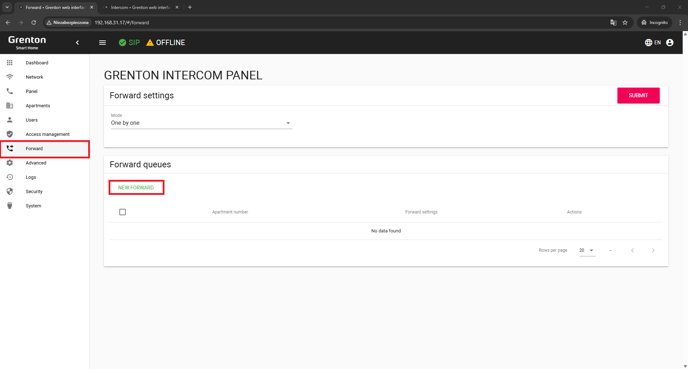
- For the default physical address of the intercom*, enter
1111in theApartment numberfield. - Then, in the
Forward numberfield, enter:sip:monitor_IP_address.
In our case:sip:192.168.31.43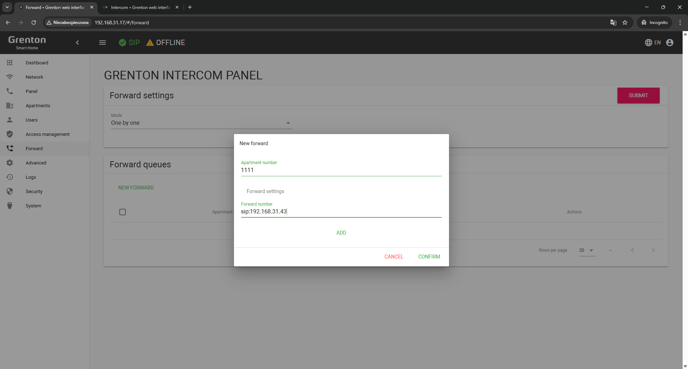
- To add call forwarding to a mobile device, select
Addand enter the SIP address of the device.
- Confirm the changes.
- In the
Modefield, choose whether the devices should ring simultaneously (All at once) or sequentially (One by one).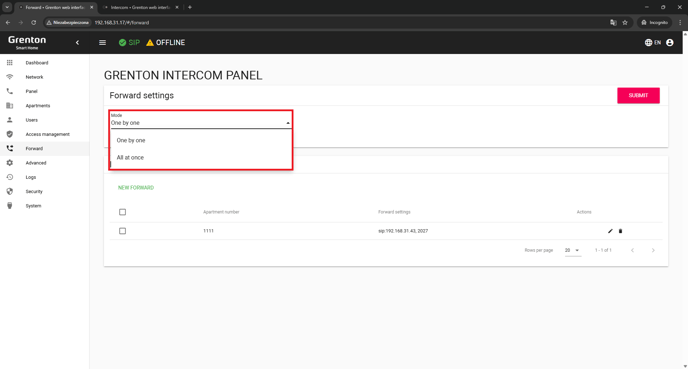
Note: You can add additional devices by selecting Add and entering another SIP address.
Note: For call forwarding to the monitor to work correctly, the monitor and intercom must have different physical addresses.
- To edit the monitor’s physical address, log in to its browser interface and go to the
Intercomtab. - In the
Monitor→Address Settingssection, change the value in theBuildingfield.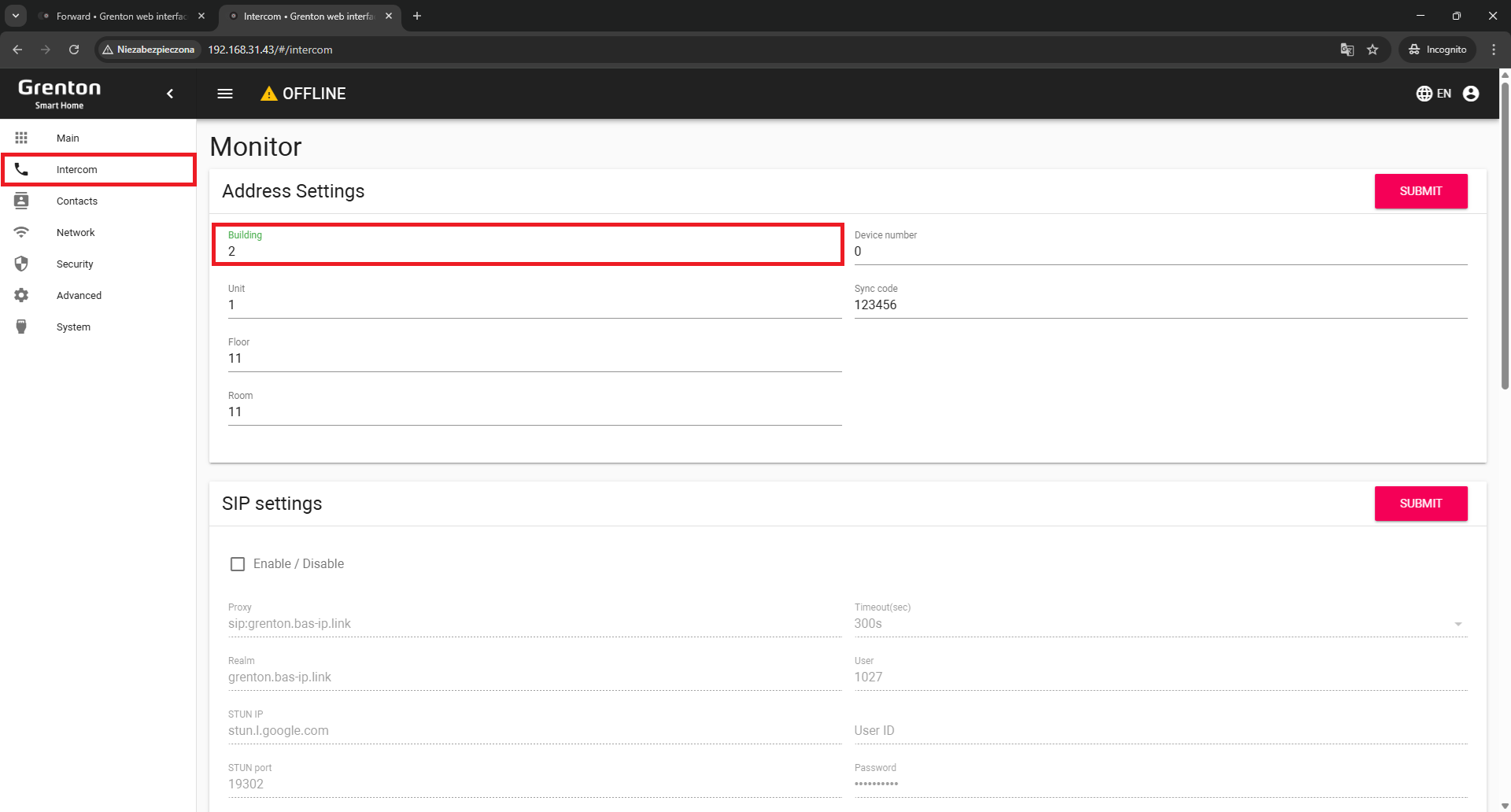
- Confirm the changes. The configuration is now complete. You can verify the operation.
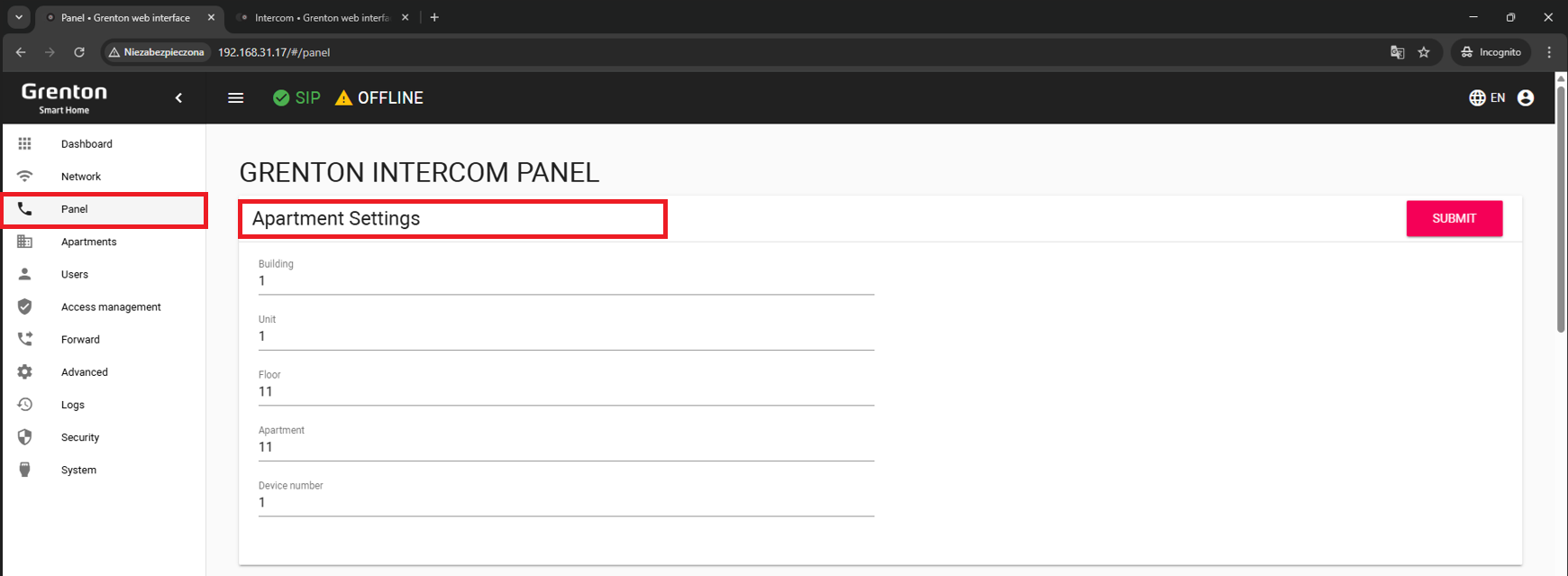
* You can check the physical address of the intercom in the Panel→Apartment Settings tab. By default, it takes the values below: