![Logo_Grenton_Main_2020_RGB_v1.0-1.png]](https://knowledgebase.grenton.com/hs-fs/hubfs/Logo_Grenton_Main_2020_RGB_v1.0-1.png?height=50&name=Logo_Grenton_Main_2020_RGB_v1.0-1.png)
Panels cleaning mode
If you want to block buttons or gestures in the panel for some time, to be able to clean the glass, follow these steps:
1. Create a "unclean" script that will cause red LEDs to turn on, buttons will not respond to touch, gestures will not be detected, and then the Timer will start.
Graphically:
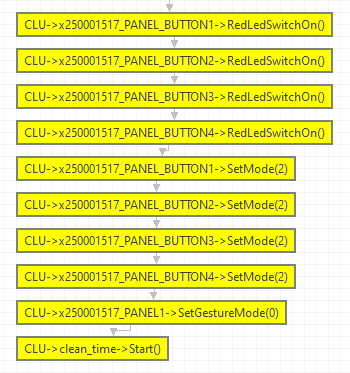
lyrically:
CLU->x250001517_PANEL_BUTTON_01->RedLedSwitchOn()

CLU->x250001517_PANEL_BUTTON_02->RedLedSwitchOn()

CLU->x250001517_PANEL_BUTTON_03->RedLedSwitchOn()

CLU->x250001517_PANEL_BUTTON_04->RedLedSwitchOn()

CLU->x250001517_PANEL_BUTTON_01->SetMode(2)

CLU->x250001517_PANEL_BUTTON_02->SetMode(2)

CLU->x250001517_PANEL_BUTTON_03->SetMode(2)

CLU->x250001517_PANEL_BUTTON_04->SetMode(2)

CLU->x250001517_PANEL_01->SetGestureMode(0)

CLU->clean_time->Start()
2. Create a "clean_time" Timer virtual object that runs the "clean" script after 60s (washing time)
The timer counts down the pre-defined cleaning time.
3. Create a "clean" script. This script will restore normal operation of the panel.
Graphically:
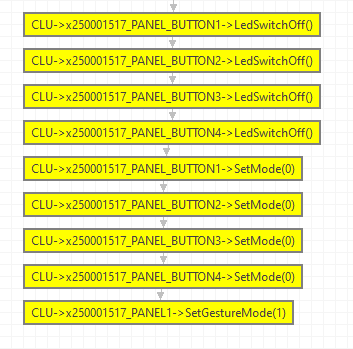
lyrically::
CLU->x250001517_PANEL_BUTTON_01->LedSwitchOff()

CLU->x250001517_PANEL_BUTTON_02->LedSwitchOff()

CLU->x250001517_PANEL_BUTTON_03->LedSwitchOff()

CLU->x250001517_PANEL_BUTTON_04->LedSwitchOff()

CLU->x250001517_PANEL_BUTTON_01->SetMode(0)

CLU->x250001517_PANEL_BUTTON_02->SetMode(0)

CLU->x250001517_PANEL_BUTTON_03->SetMode(0)

CLU->x250001517_PANEL_BUTTON_04->SetMode(0)

CLU->x250001517_PANEL_01->SetGestureMode(1)
4. The washing mode can be triggered using e.g. a mobile application or OnLongPress event run on the Panel.
