![Logo_Grenton_Main_2020_RGB_v1.0-1.png]](https://knowledgebase.grenton.com/hs-fs/hubfs/Logo_Grenton_Main_2020_RGB_v1.0-1.png?width=200&height=94&name=Logo_Grenton_Main_2020_RGB_v1.0-1.png)
1. First, configure the virtual objects on Gate HTTP
1.1 HTTPRequest object: gcal_TokenRefresh
|
Parameter |
Value |
|
Name |
gcal_TokenRefresh |
|
Host |
https://oauth2.googleapis.com |
|
Path |
/token |
|
Method |
POST |
|
Timeout |
8 |
|
RequestType |
FormData |
|
ResponseType |
JSON |
1.2 HTTPRequest object: gcal_GetEvents
|
Parameter |
Value |
|
Name |
gcal_GetEvents |
|
Host |
https://www.googleapis.com |
|
Path |
/calendar/v3/calendars/primary/events |
|
Method |
GET |
|
Timeout |
8 |
|
RequestType |
None |
|
ResponseType |
JSON |
1.3 Timer: timer_gcal_Poll
|
Parameter |
Value |
|
Name |
timer_gcal_Poll |
|
Time |
300000 (5 minutes) |
|
Mode |
1 (Interval) |
1.4 Timer: timer_gcal_Blink
|
Parameter |
Value |
|
Name |
timer_gcal_Blink |
|
Time |
800 |
|
Mode |
1 (Interval) |
1.5 Timer: timer_gcal_BlinkStop
|
Parameter |
Value |
|
Name |
timer_gcal_BlinkStop |
|
Time |
10000 (10 seconds of blinking) |
|
Mode |
0 (Countdown) |
2. Create a PUSH virtual object named gcal_push on CLU.
3. Create user properties and scripts on GATE HTTP, then assign them to the indicated events
3.1 User properties:
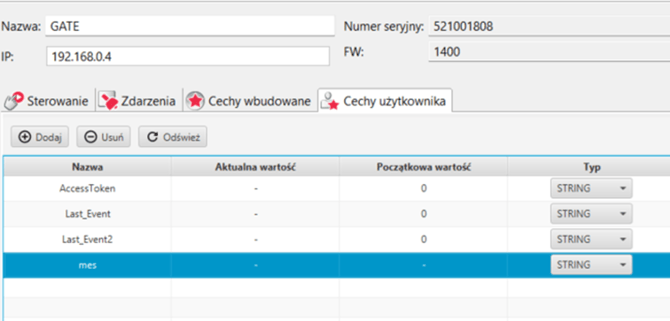
3.2 Script name: "script_gcal_StartCycle" Assign to: "timer_gcal_Poll → OnTimer"
local CLIENT_ID = "CLIENT ID OBTAINED FROM GOOGLE API"
local CLIENT_SECRET = "CLIENT SECRET OBTAINED FROM GOOGLE API"
local REFRESH_TOKEN = "REFRESH TOKEN OBTAINED FROM GOOGLE API"

local body = "client_id=" .. CLIENT_ID
  .. "&client_secret=" .. CLIENT_SECRET
  .. "&refresh_token=" .. REFRESH_TOKEN
  .. "&grant_type=refresh_token"

GATE->gcal_TokenRefresh->SetRequestBody(body)
GATE->gcal_TokenRefresh->SendRequest()
3.3 Script name: "script_gcal_EventReceived" Assign to: "gcal_GetEvents → OnResponse"
local items = GATE->gcal_GetEvents->ResponseBody.items
print("number of items: " .. tostring(#items))
if not items or #items == 0 then
print("[GCalendar] No events found in the 30-minute window")
return
end
local title = ""
local etag1 = items[1].etag

if etag1 ~= GATE->Last_Event then
GATE->Last_Event = etag1
title = items[1].summary or ""
print("[GCalendar] Event in ~30 minutes: " .. title)
elseif #items > 1 and items[2].etag ~= GATE->Last_Event2 then
GATE->Last_Event2 = items[2].etag
title = items[2].summary or ""
print("[GCalendar] Event in ~30 minutes: " .. title)
else
print("[GCalendar] Event reminders have already been sent")
end

if title ~= "" then
GATE->timer_gcal_Blink->Stop()
GATE->timer_gcal_BlinkStop->Stop()
GATE->timer_gcal_Blink->Start()
GATE->timer_gcal_BlinkStop->Start()

local message = "in about 30 minutes you have an event called: " .. title
print(message)
GATE->mes = message
CLU->gcal_push->SetTitle("Calendar reminder")
CLU->gcal_push->SetMessage(GATE->mes)
SYSTEM.Wait(500)
CLU->gcal_push->Send()
End
3.4 Script name: "script_gcal_TokenReceived" Assign to: "gcal_TokenRefresh → OnResponse"
local resp = GATE->gcal_TokenRefresh->ResponseBody

local token = resp.access_token

GATE->AccessToken = token
print(GATE->AccessToken)

if not token then
print("[GCalendar] No access_token in the response!")
return
end

-- Set the authorization header for the calendar request
local header = "Authorization: Bearer " .. token .. "\r\n"
GATE->gcal_GetEvents->SetRequestHeaders(header)

-- Time window: events starting between now+28min and now+33min
-- This ensures that when polling every 5 minutes, we always catch the 30-minute boundary
local now = GATE->Time
local date = GATE->Date
-- Here you can change your time zone
local tMin = date .. "T" .. now .. "+01:32"
local tMax = date .. "T" .. now .. "+01:27"

-- URL encoding: colon -> %3A (required in the query string)
tMin = string.gsub(tMin, ":", "%%3A")
tMax = string.gsub(tMax, ":", "%%3A")
tMin = string.gsub(tMin, "+", "%%2B")
tMax = string.gsub(tMax, "+", "%%2B")

local params = "timeMin=" .. tMin
.. "&timeMax=" .. tMax
.. "&maxResults=5"

GATE->gcal_GetEvents->SetQueryStringParams(params)
GATE->gcal_GetEvents->SendRequest()
3.5 Script name: "script_gcal_BlinkTick" Assign to: "timer_gcal_Blink → OnTimer"
if CLU->DOUT->Value == 1 then
CLU->DOUT->SwitchOff(0)
else
CLU->DOUT->SwitchOn(0)
End
3.6 Script name: "script_gcal_StopBlink" Assign to: "timer_gcal_BlinkStop → OnTimer"
GATE->timer_gcal_Blink->Stop()
print("[GCalendar] End of light notification")
4. Verify event association:
|
Source object |
Event |
Action |
|
CLU (embedded) |
OnInit |
timer_gcal_Poll → Start() |
|
timer_gcal_Poll |
OnTimer |
script_gcal_StartCycle |
|
gcal_TokenRefresh |
OnResponse |
script_gcal_TokenReceived |
|
gcal_GetEvents |
OnResponse |
script_gcal_EventsReceived |
|
timer_gcal_Blink |
OnTimer |
script_gcal_BlinkTick |
|
timer_gcal_BlinkStop |
OnTimer |
script_gcal_StopBlink |
5. Create and obtain keys and tokens from Google API
1. Go to https://console.cloud.google.com and search for "calendar". Then select and enable "Google Calendar API".
2. Go to the "Credentials" tab on the left and click "Create credentials".
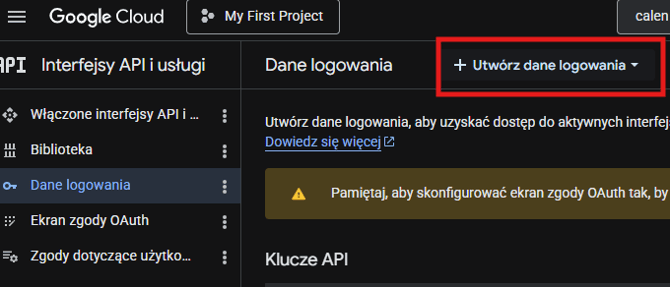
Then select "API key". Give it any name you want, choose "API restrictions", and search for "Google Calendar API".
Create the API interface.
3. Go to the "OAuth consent screen tab" and start the configuration.
4. After completing the configuration, go to the "Data access" tab and add the scope:
"https://www.googleapis.com/auth/calendar.readonly"
5. Then in the "Clients" tab, create a client as a "Web application" and add the following URL to "Authorized redirect URLs":
"https://developers.google.com/oauthplayground"
Copy and save your Client ID and Client Secret.
6. In the Audience tab, add your email address as a test user. This is required to authorize the application.
7. Authorize the application:
7.1. Open https://developers.google.com/oauthplayground.
7.2. Click the gear icon in the top-right corner and check "Use your own OAuth credentials".
7.3. Enter your Client ID and Client Secret.
7.4. In the left panel, search for: "https://www.googleapis.com/auth/calendar.readonly"
Select this scope.
7.5. Click "Authorize APIs" → sign in to your Google account → allow access.
7.6. Click "Exchange authorization code for tokens".
7.7. Copy and store the "refresh_token" value securely — it will be needed only once.
8. Fill in the missing values in the "script_gcal_StartCycle" script
local CLIENT_ID = “”
local CLIENT_SECRET = “”
local REFRESH_TOKEN = “”