![Logo_Grenton_Main_2020_RGB_v1.0-1.png]](https://knowledgebase.grenton.com/hs-fs/hubfs/Logo_Grenton_Main_2020_RGB_v1.0-1.png?width=200&height=94&name=Logo_Grenton_Main_2020_RGB_v1.0-1.png)
The intercom system allows voice calls between monitors. To set this up, follow the steps below. The example shows a configuration that allows calls from Monitor 2 to Monitor 1.
- Log in to the first monitor (
Monitor 1). - In the
Intercomtab, check theDevice number.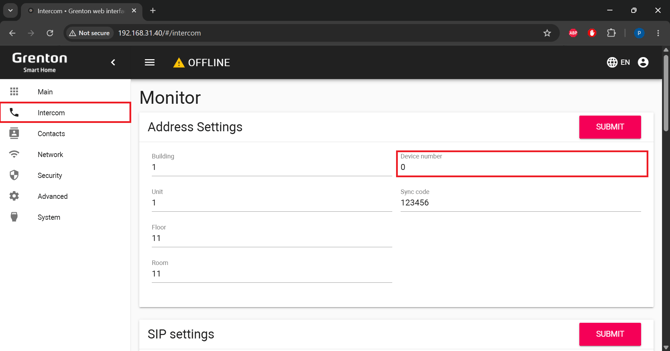
- Log in to the second monitor (
Monitor 2). - Go to the
Contactstab and selectAdd number.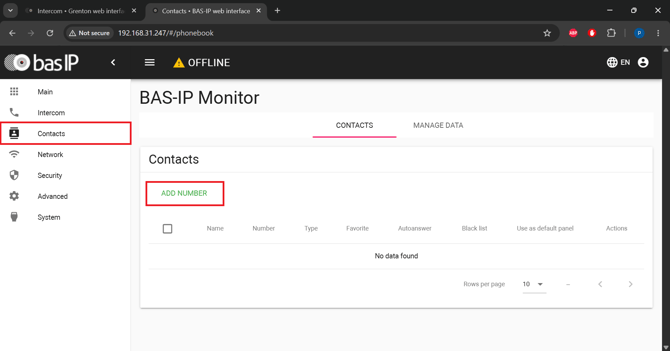
- Fill in the fields:
Name– the name of the device you want to callType– select Regular NumberFormat– select SIP NumberNumber– enter the value in the following format:sip:device_number_of_the_device_being_added@IP_address_of_the_device_being_added
In our example,Monitor 1, which is being added to the contacts list, has aDevice numberof 0 and anIP addressof 192.168.31.40.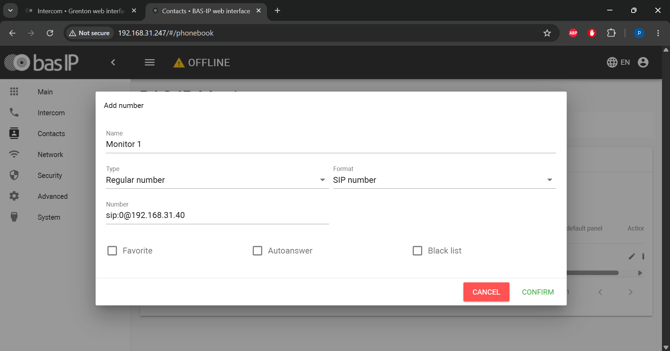
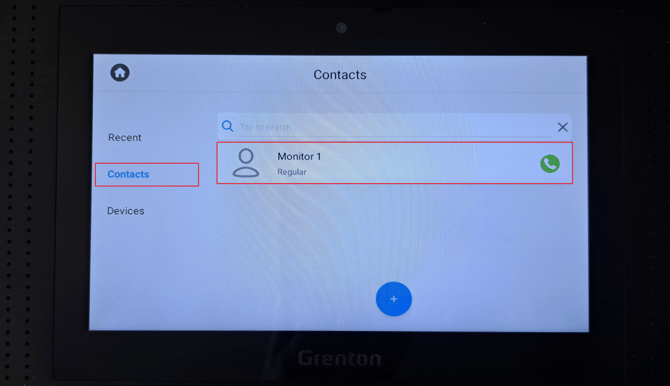
- After saving the changes, you can make a call from the monitor. To do this, select the
Callsbutton on the main dashboard, then choose the added device from theContactstab.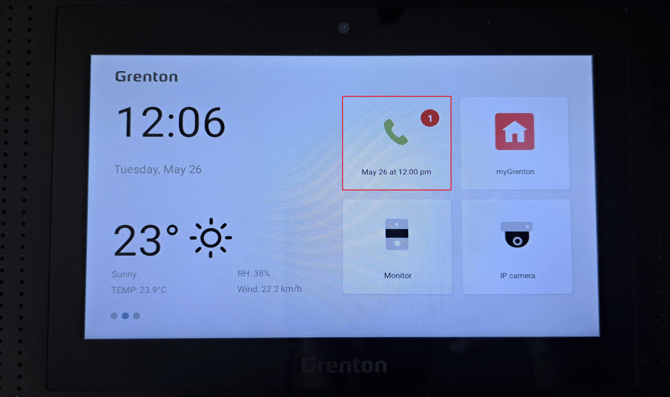
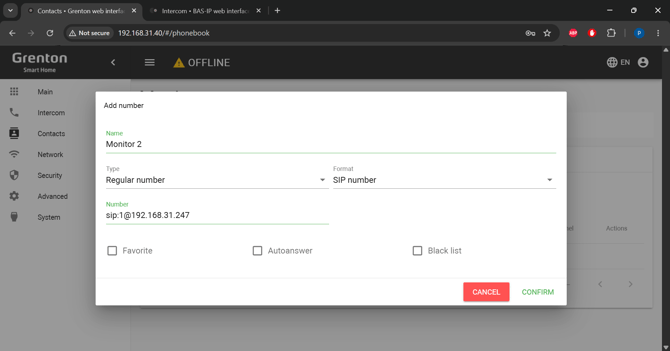
Monitor 2 on Monitor 1. In our example, Monitor 2 has a Device number of 1 and an IP address of 192.168.31.247: